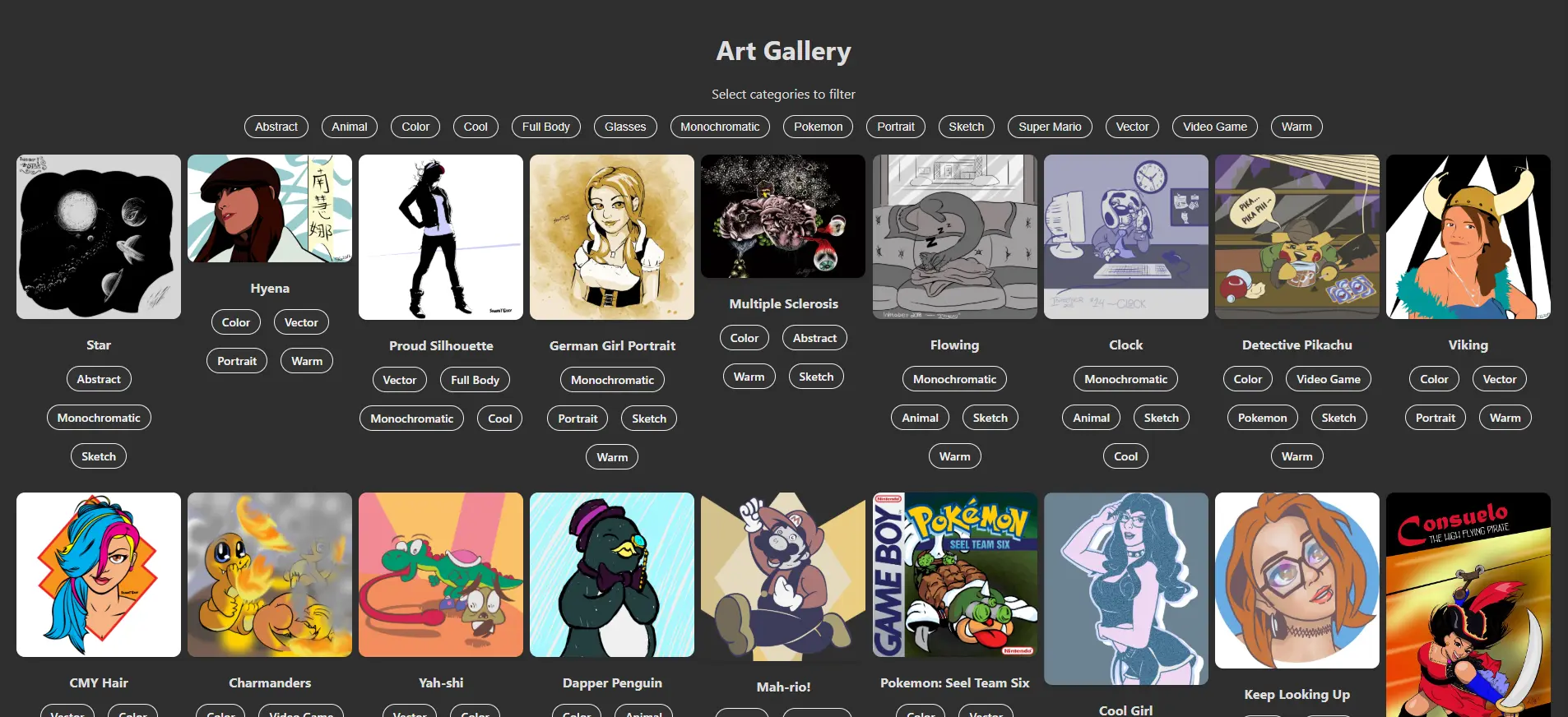
We’re half way there! In this part, we will:
- Use the data from images.json to build a full list of category tag buttons.
- Add tag buttons to the ImageCard components.
- Add functionality to the buttons that will filter the images by only displaying those images that include the selected category tags
Add the Full List of Filter Buttons to App.js

Open your App.js file and update its content to:
// imports

function App() {
  const images = data;
  const uniqueCategories = [...new Set(images.flatMap((image) => image.categories))].sort();

  return (
    <div className='App'>
      <h1>Art Gallery</h1>
      <p>Select categories to filter</p>
      <div className='categories'>
        {uniqueCategories.map((category) => (
          <button
            key={category}
            className={`category-pill ${filters.includes(category) ? 'active' : ''}`}
          >{category}</button>
        ))}
      </div>
      <ImageGallery
        images={images}
      />
    </div>
  );
}

export default App;
Notes about the changes:
- We set our data to the images variable as the images/image combo is a lot easier to understand at a glance than data/datum.
- To gather all unique category tags from the images.json data, we create a new Set where we cycle through each image, gather all category tags, and add all unique tags to the uniqueCategories array ignoring any repeated tag.
- The uniqueCategories is alphabetized (A→Z) for improved readability. If we didn’t use .sort(), the tags would be listed in a first-found order—fairly confusing on the user’s end.
- We then create a new categories container in our App container where we map out each category as its own button.
For now, the buttons don’t actually do anything. We’ll add the filter functionality later in this Part.
Next, we’ll add the category tags to the individual ImageCard components in ImageCard.js. This won’t change your ImageGallery component as it already accepts your images and passes along each image’s information through the ImageCard element’s image attribute.
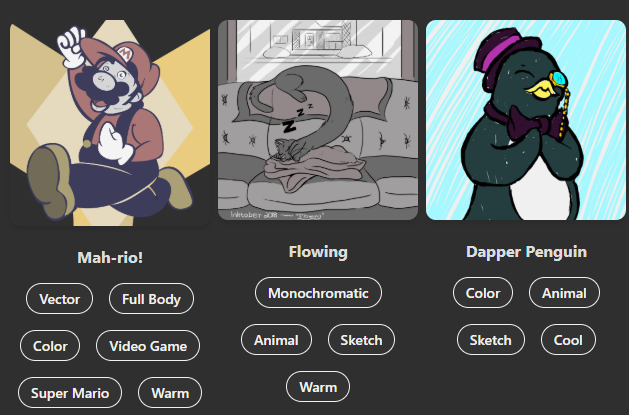
Open your ImageCard.js file and update it to build the category tag buttons for each image.
ImageCard.js
const ImageCard = (image) => {
  return (
    <div className="image-card">
      <img src={`${process.env.PUBLIC_URL}${image.src}`} alt={image.title} />
      <p><strong>{image.title}</strong></p>
      <div className="categories">
        {
          image.categories.length > 0
            ? (
              image.categories.map((category) => (
                <span
                  key={category}
                  className="category-pill"
                >{category}</span>
              ))
            )
            : (<span>Add a category</span>);
        }
      </div>
    </div>
  );
}

export default ImageCard;
What’s changed:
- We created a categories container within the image-card container. Note that this shares the same class name as the container you created in your App component. This way, all category tag buttons will be styled the same, signaling to the user that these buttons all serve the same purpose.
- We then set up a ternary statement (helpful shorthand for if/else statements). If we have any categories listed for this image, build the buttons. Otherwise, display the message “Add a category”. The pattern for a ternary statement is:
condition
  ? Do this if condition is true
: Do this if condition is false;- Here the category tag buttons are <span> elements, but they will function and be styled the same as the <button> elements in your App component.
Now we’ll add the necessary styles for the categories and category-pill classes to App.css:
App.css
/* All your previous styles */

.categories {
  margin-top: 10px;
  margin-bottom: 20px;
  display: flex;
  flex-flow: row wrap;
  gap: 1em;
  justify-content: center;
}

.category-pill {
  padding: 5px 12px;
  background-color: #333;
  color: #f1f1f1;
  border: 1px solid #f1f1f1;
  border-radius: 20px;
  font-size: 14px;
  font-weight: 500;
  transition: all .3s, color .3s;
  cursor: default;
}

.category-pill:hover,
.category-pill.active {
  background-color: #428645;
}
Let’s Make Them Filter!
Now that all the buttons are in place, let’s make them actually filter your list of images. To do this, we’ll utilize React’s built-in useState functionality to track and, well, react to your changes.
A useState statement takes in a variable and through some function, updates that variable, setting it to a new piece of data that reflects your changes.
Remember that events bubble from the bottom up. Events update properties that are then fed from the top down. Knowing this, let’s add the filter functionality to the App component.
App.js
import { useState } from 'react';
// other imports

function App(){
  const images = data;

  const [filters, setFilters] = useState([]);
  const [images, setImages] = useState([]);

  const toggleFilter = (category) => {
    setFilters((prevFilters) => {
      if (prevFilters.includes(category)) {
        return prevFilters.filter((filter) => filter !== category);
      } else {
        return [...prevFilters, category];
      }
    });
  }

  const uniqueCategories = [...new Set(images.flatMap((image) => image.categories))].sort();

  const filteredImages = filters.length === 0
    ? images
    : images.filter((image) => filters.every((filter) => image.categories.includes(filter)));

  return (
    <div className='App'>
      <h1>Art Gallery</h1>
      <p>Select categories to filter</p>
      <div className='categories'>
        {uniqueCategories.map((category) => (
          <button
            key={category}
            className={`category-pill`}
            onClick={() => toggleFilter(category)}
          >{category}</button>
        ))}
      </div>
      {
         filteredImages.length === 0
           ? (
             <p style={{ color: 'red' }}><em>No images found for the selected categories.</em></p>
           )
           : (
             <ImageGallery
               images={filteredImages}
               toggleFilter={toggleFilter}
             />
           )
      }
    </div>
  );
}

export default App;
What is happening with these changes?
- Import the useState method from the React library.
- Instantiate useState methods as empty arrays for both filters and images.
- Build a toggleFilter function that takes in a category parameter and checks if the category already appears in the filters array. If so, remove it from the filters array. Otherwise, add the chosen category to the filters array.
- Build a filteredImages function that takes takes in the array of filters. If the array is empty, display all images. Otherwise, only display those images that have the categories that appear inside the filters array within their categories list (as shown in your images.json file).
- Update the <button> element built in the uniqueCategories.map() function by adding an onClick event that triggers the toggleFilter() function and pass it’s corresponding category to that function.
- Update the <ImageGallery> element so that it:
- Only displays images returned by the filterImages function.
- Passes along the toggleFilter function so that the ImageCard can inherit and use the function. Otherwise, toggleFilter will have to be redefined in the ImageCard component, which would cause a whole host of timing issues and variable/event collisions that would outright destroy your app.
Next, update the ImageGallery component so it can successfully inherit and pass along the new toggleFilter function.
ImageGallery.js
import ImageCard from './ImageCard';

const ImageGallery = ({ images, toggleFilter }) => {
  return (
    <div className="gallery">
      {images.map((image, i) => (
        <ImageCard
          key={i}
          image={image}
          toggleFilter={toggleFilter}
        />
      ))}
    </div>
  );
}
Since the ImageGallery component basically serves simply as a throughline that connects the individual ImageCard components with the larger App component, the changes we made are simple:
- toggleFilter was added to the list of parameters ImageGallery can accept.
- The <ImageCard> element now has a new toggleFilter attribute set to toggleFilter.
Now, update the ImageCard component so it can properly inherit toggleFilter and use the function for its own group of filter buttons.
ImageCard.js
const ImageCard = ({ image, toggleFilter }) => {
  return (
    <div className="image-card">
      <img src={`${process.env.PUBLIC_URL}${image.src}`} alt={image.title} />
      <p><strong>{image.title}</strong></p>
      <div className="categories">
        {
          image.categories.length > 0
            ? (
              image.categories.map((category) => (
                <span
                  key={category}
                  className="category-pill"
                  onClick={
                    (e) => {
                      e.stopPropagination();
                      toggleFilter(category)
                    }
                  }
                >{category}</span>
              ))
            )
            : (<span>Add a category</span>);
        }
      </div>
    </div>
  );
}

export default ImageCard;
All the heavy lifting is done within your App component. Here, we made two changes:
- ImageCard contains a new parameter to properly inherit toggleFilter from its parent component.
- Each <span> created by image.categories.map() now contains an onClick event that fires off the toggleFilter function.
Filtering Functionality is Finished! *Phew*
We first added the category filter buttons to the App and ImageCard components. These buttons are dynamically built using the images.json data, no hard-coded tags necessary. This allows us to add, remove and edit categories on the fly without ever touching the app itself.
Then, we built a series of useState methods and functions that capture categories when the buttons are clicked. We applied the functions to App, sent them through ImageGallery so they can eventually be inherited and utilized by the ImageCard component.
In the next part, we’ll add more functionality to allow the user to click an image to see it full-screen. We’ll also add a fun function that shuffles the images every time the app is loaded.

Leave a Reply